Examples of using triggers:
- Send a rejection email automatically, for example one day after changing the status to “Rejected”.
- Follow up with a sourced candidate automatically after a certain number of days without response.
- Create a follow-up reminder for a placed candidate, a few weeks or months after their hiring.
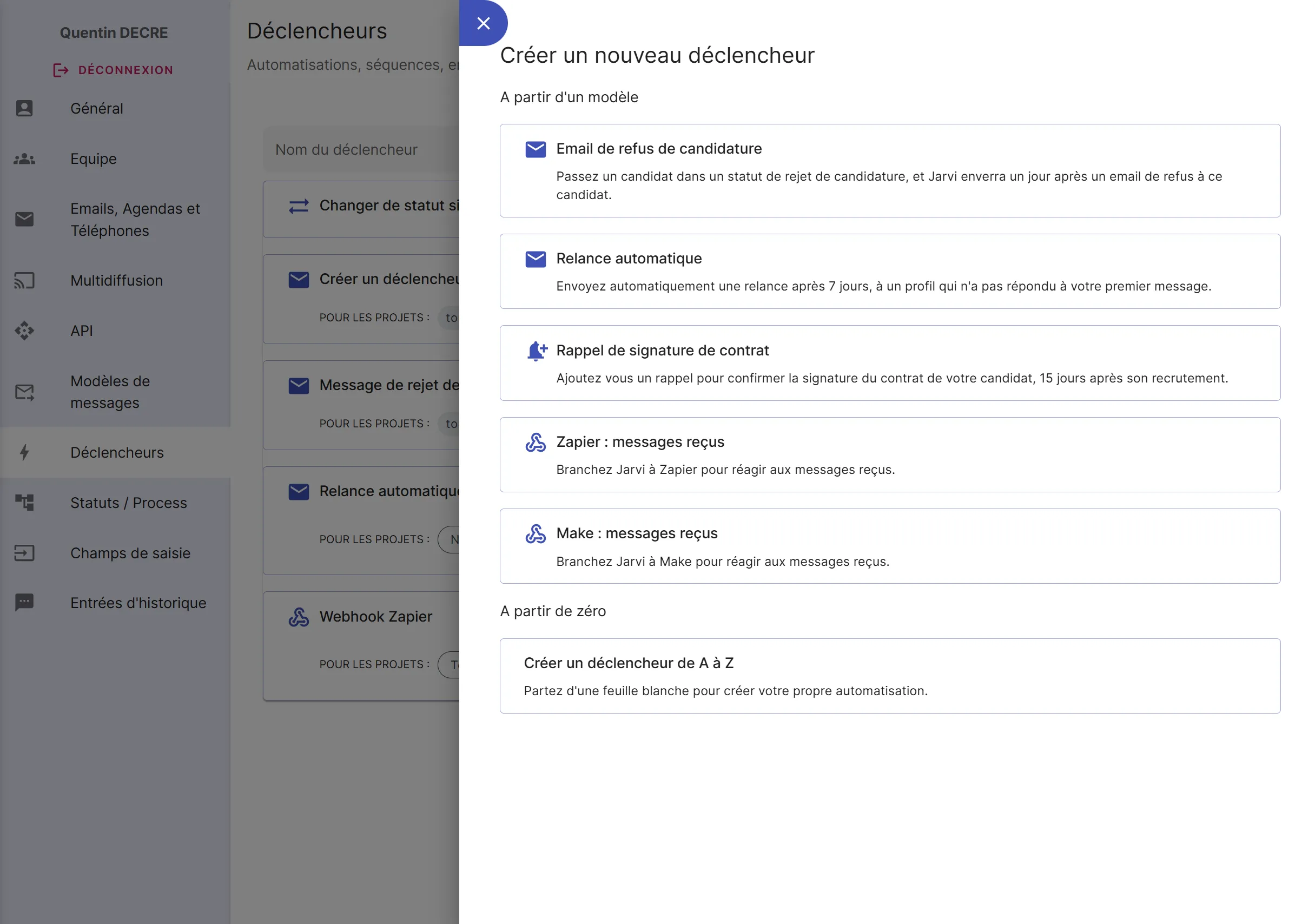
Let’s see together how to configure a trigger.
1. Understanding how triggers work
A trigger is an automated action that occurs following an event.
To create your trigger, you simply need to define:
- the event that triggers it
- the action to perform
- (options such as delay)
Types of events that can trigger an action:

- Status change: When a profile moves from one status to another in a project.
- Interaction: When a candidate sends a new message or performs another action.
Actions that can be triggered
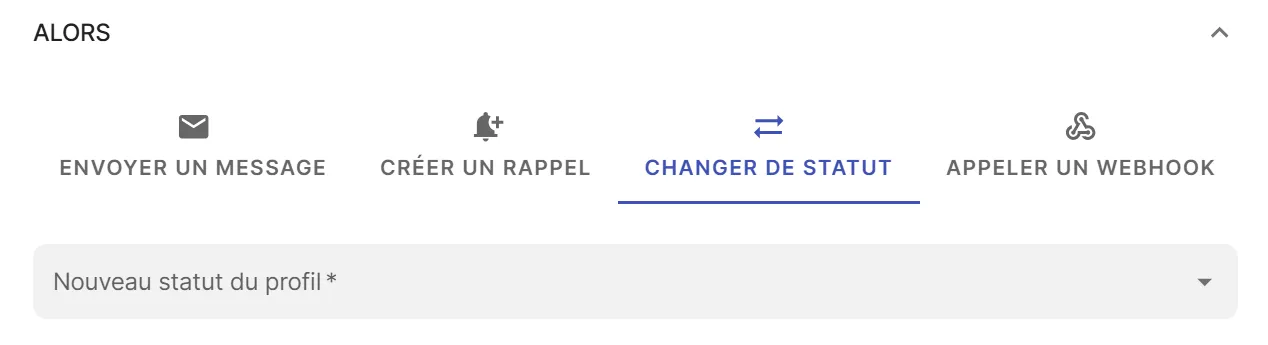
- Send a message: send a message, or a sequence of messages via LinkedIn, InMail, Email, …
- Change status
- Add a reminder: so you don’t forget anything
- Call a webhook: to communicate with external tools (use Make or Zapier to send Slack or Discord notifications for example)
You too can save time with Jarvi
Request your access and start automating your daily tasks

Options
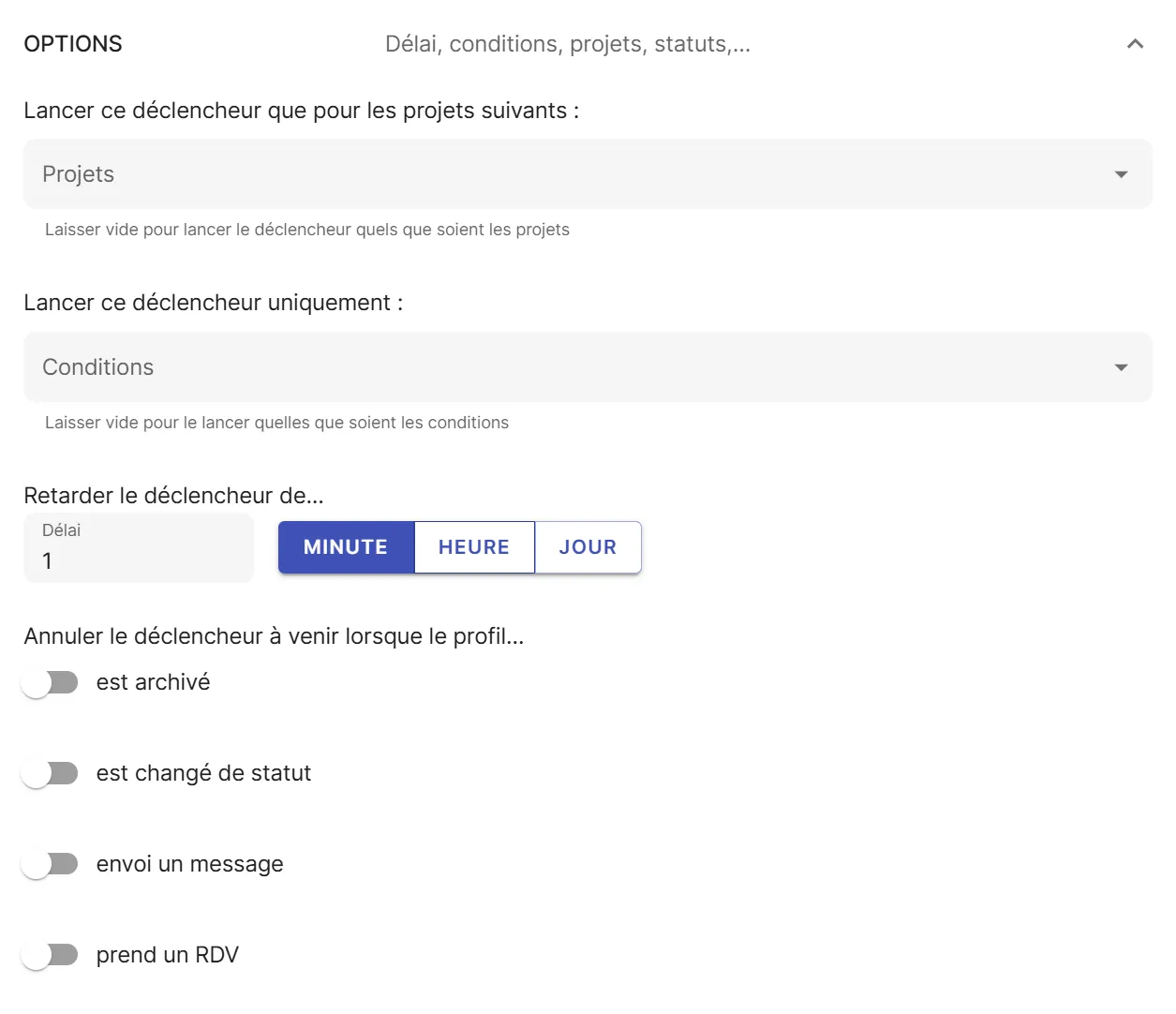
You can customize:
- delay: to trigger the action after a few minutes, hours, or days
- conditions to restrict which profiles are affected: only candidates, only sourced profiles, or exclude protected profiles
- trigger cancellation conditions: cancel the trigger in case of a new status change, a received message, etc.
- limit projects for which to activate this trigger
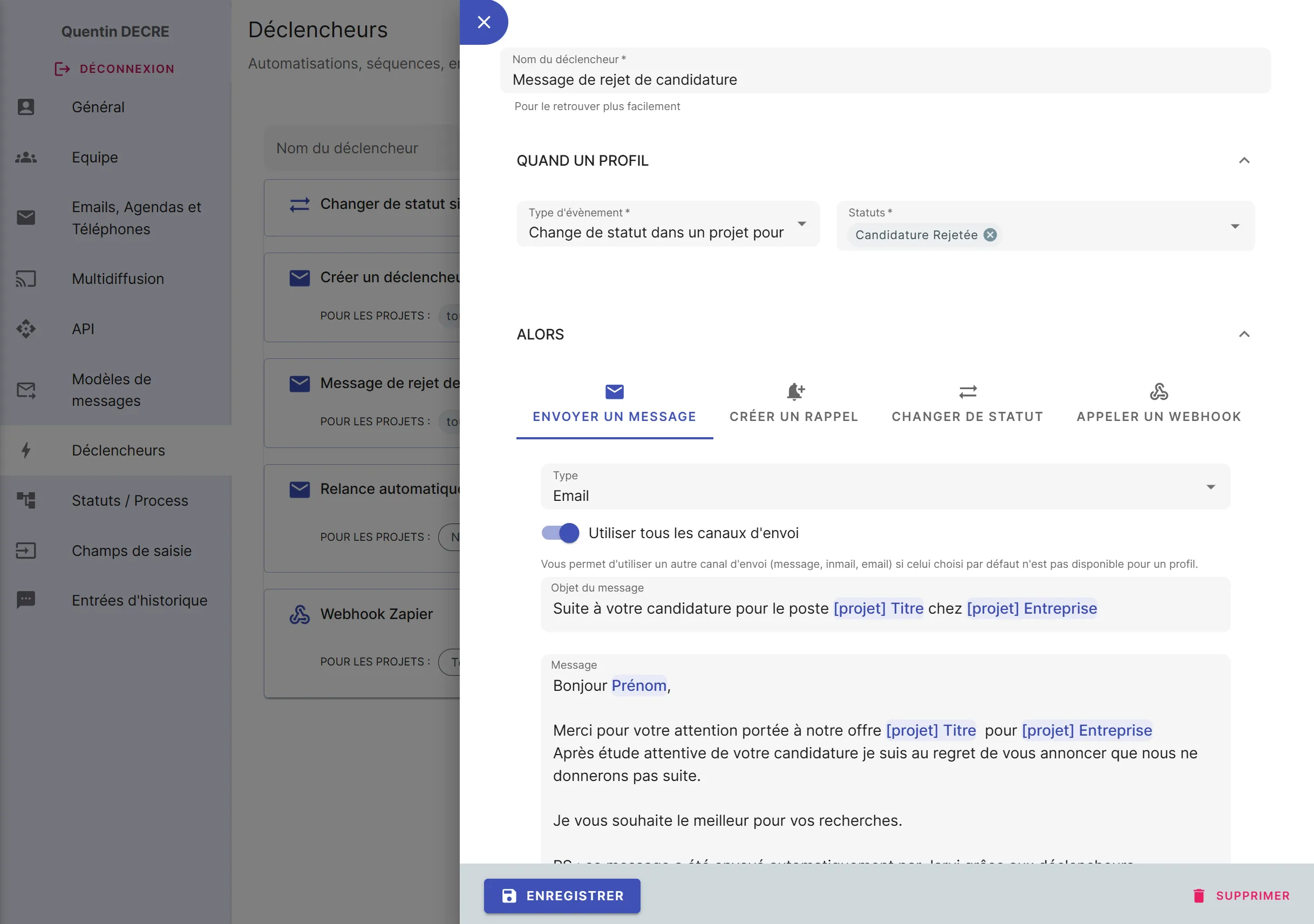
2. Trigger example: Automatic rejection message
In the example below, we’re setting up a trigger
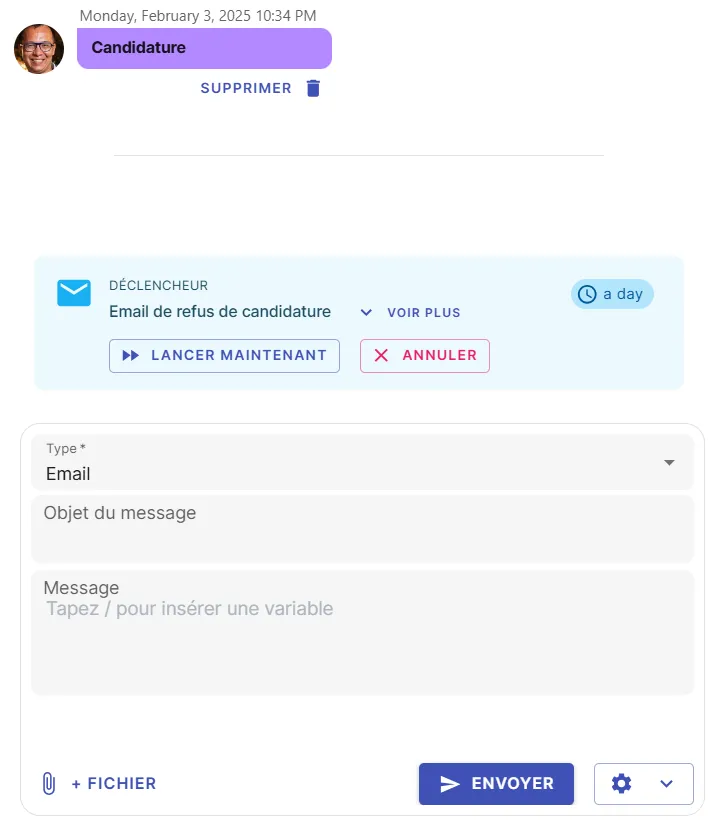
3. Testing and monitoring a trigger in action
When a trigger is activated, you can see its status:
- It appears in the interaction history of the affected profile.
- You can cancel it or execute it immediately.
- You can preview the message before it’s sent.
Conclusion
Triggers allow you to automate your actions and improve your productivity. Experiment with the different options to optimize your workflows!
If you have a specific need that you can’t automate, contact our support team. We’ll be happy to explore the possibilities with you!