Connect your Allo phone system to Jarvi to centralize your calls, SMS, transcriptions and summaries directly in your candidate and contact profiles. The integration lets you access the full history of your phone interactions without leaving Jarvi.
Prerequisites
Before connecting Allo to Jarvi, you need:
- An active Allo account with an assigned phone number
- Your Allo API key, available at web.withallo.com/settings/api
To send SMS from Jarvi, you must first request the activation of an A2P (Application-to-Person) number through your Allo dashboard. This request is made directly to Allo support from their interface. Without this activation, only calls and incoming SMS will be synchronized.
Connect Allo to Jarvi
- Access the connection settings
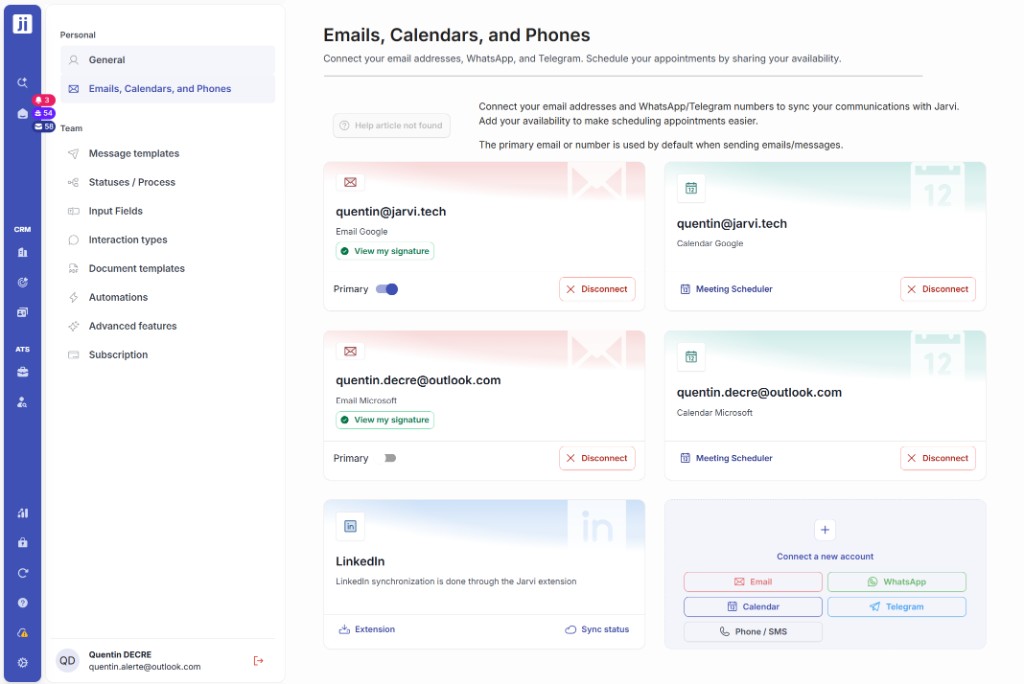
- Open Jarvi, go to your Preferences and select Emails, Calendars, and Phones.
- Click Phone / SMS in the “Connect a new account” section.
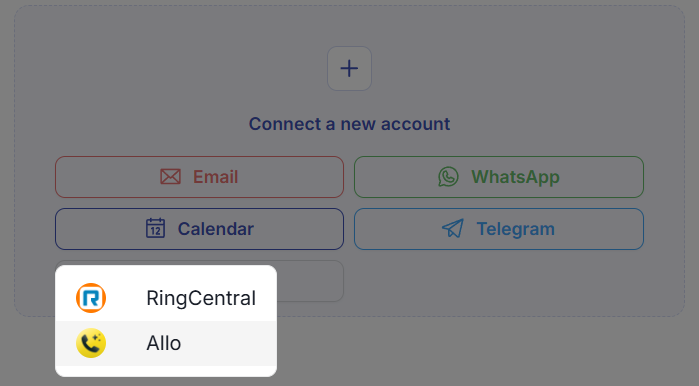
- Enter your API key
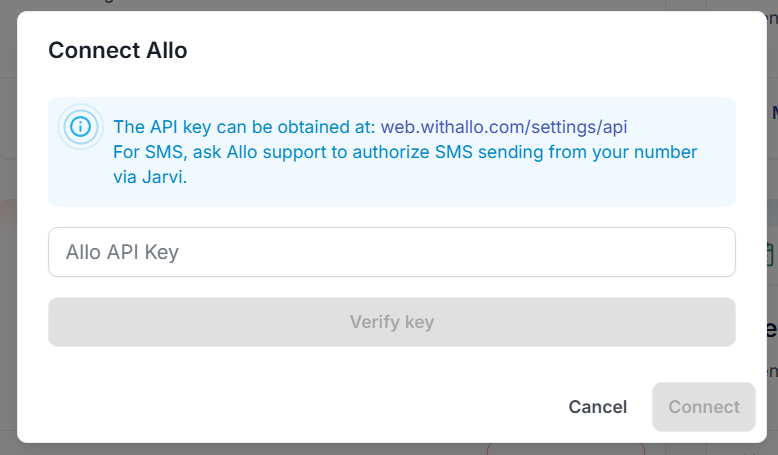
- A dialog opens asking for your Allo API key.
- Copy it from web.withallo.com/settings/api and paste it in the field.
- Click Verify key to validate the connection.
- Select your user
- If your Allo account has multiple users, choose the one to associate.
- Click Connect to finalize.
Once connected, Jarvi automatically registers a webhook on your Allo number to receive call and SMS notifications in real time.
What the Allo integration brings you
Synchronized call history
Every incoming or outgoing call is automatically recorded in the corresponding profile’s history, with the date, duration and direction (inbound/outbound).
Transcriptions and AI summaries
When Allo provides an audio recording or transcription, these are directly attached to the call in Jarvi. By default, Jarvi uses the transcription and summary generated by Allo.
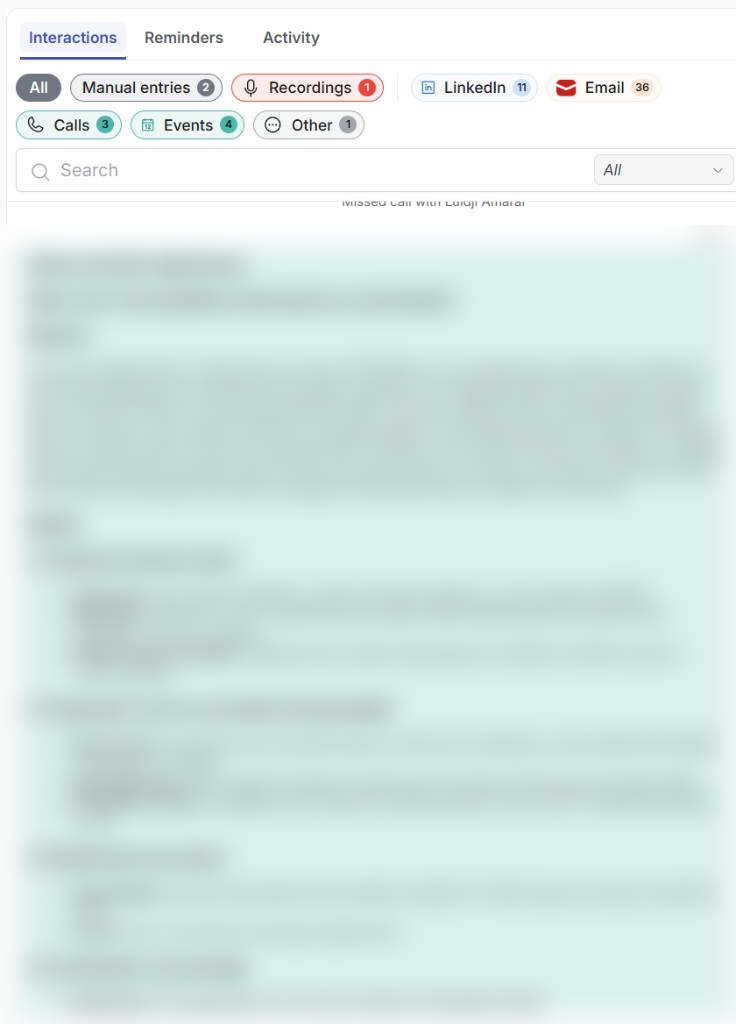
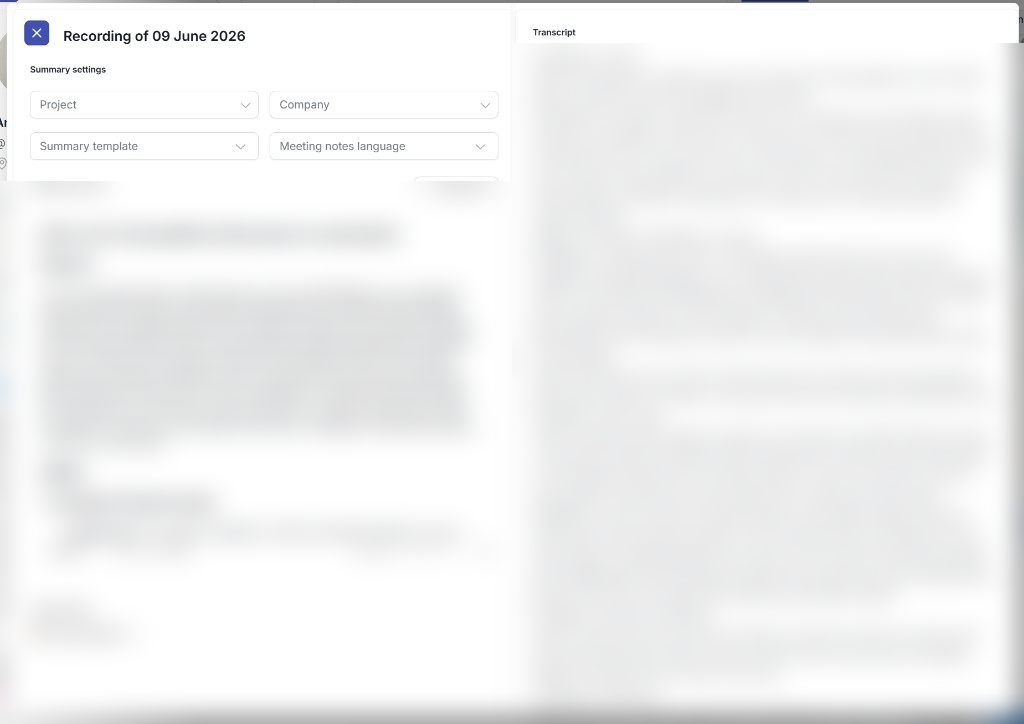
If you want a more structured report tailored to your needs, click Regenerate to use Jarvi’s meeting notes templates. You can choose the project, company, template and language to get a personalized summary powered by Jarvi’s AI.
Incoming and outgoing SMS
SMS received and sent via Allo appear in the profile history, giving you a complete view of all exchanges with a candidate or contact.
Send SMS from Jarvi
If A2P sending is enabled on your number, you can send SMS directly from Jarvi:
- Open a profile
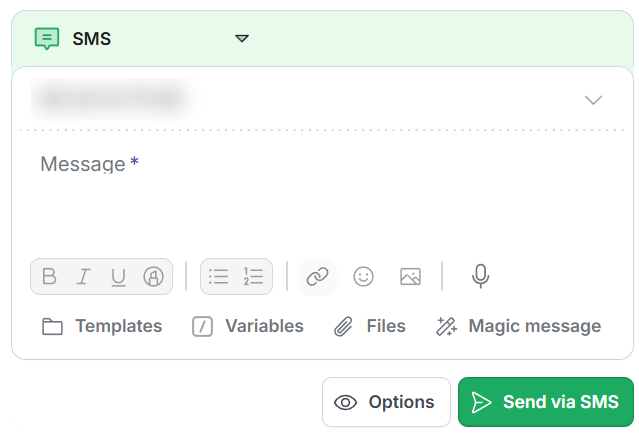
- Click Send a message then select SMS
- Write your message (you can use templates, variables or Magic Message AI)
- Click Send via SMS
In France, SMS sent from an application (A2P) use a special number and a text-based sender ID instead of your regular phone number. The recipient will see a sender name (e.g. “Jarvi”) and will not be able to reply directly to the SMS. This number must be requested and activated beforehand from your Allo dashboard.
Push profiles to the Allo Power Dialer
You can push profiles directly from Jarvi to Allo’s Power Dialer to launch an automated calling session:
- Select your profiles from a candidate or contact list
- Click the Share button
- At the bottom of the menu, click Add to Allo Power Dialer
Phone numbers are sent to the Power Dialer along with profile information (name, company, job title, email). You can then open Allo and start your calling session.
This option only appears if you have connected your Allo account to Jarvi. It is available as a single action (from a profile page) and as a bulk action (by selecting multiple profiles in a list).
Troubleshooting
| Issue | Solution |
|---|---|
| Invalid API key | Make sure you copied the complete key from web.withallo.com/settings/api |
| SMS not sent (A2P error) | Contact Allo support to enable A2P sending on your number |
| Calls not syncing | Check that the webhook is properly registered in Allo settings |
The Allo integration in Jarvi lets you centralize all your phone interactions and save valuable time every day. Jarvi support is available for any questions.