1. Activate the option in preferences
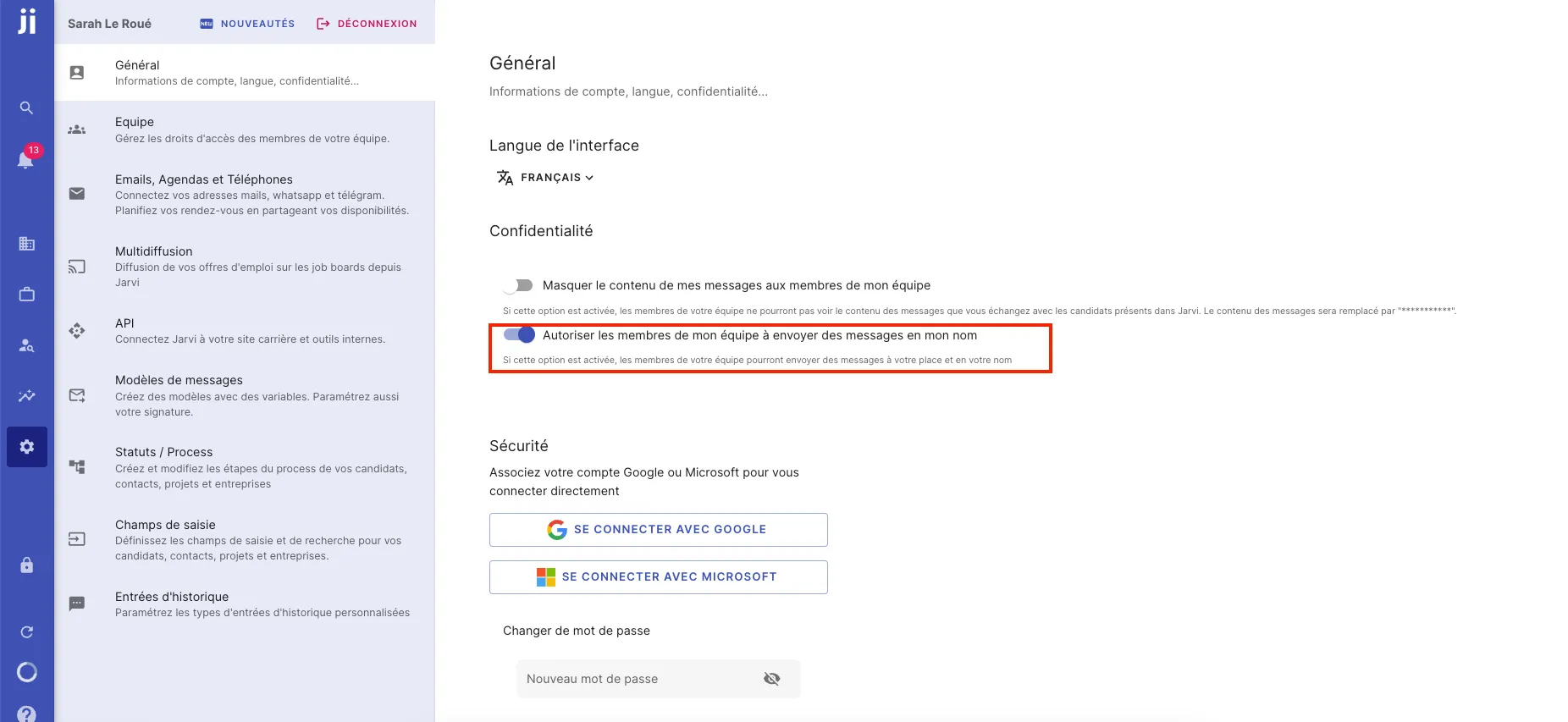
- Go to Jarvi preferences.
- In the central menu, you’ll find the option “Allow my team members to send messages on my behalf”.
- Make sure this option is enabled so you can send messages on behalf of your colleagues.
2. Select the person on whose behalf to send the message
- Once the option is activated, when you are on a contact’s profile, click on “Contact” at the bottom right of the screen.
- Choose the communication channel you want to use (for example, LinkedIn or Email).
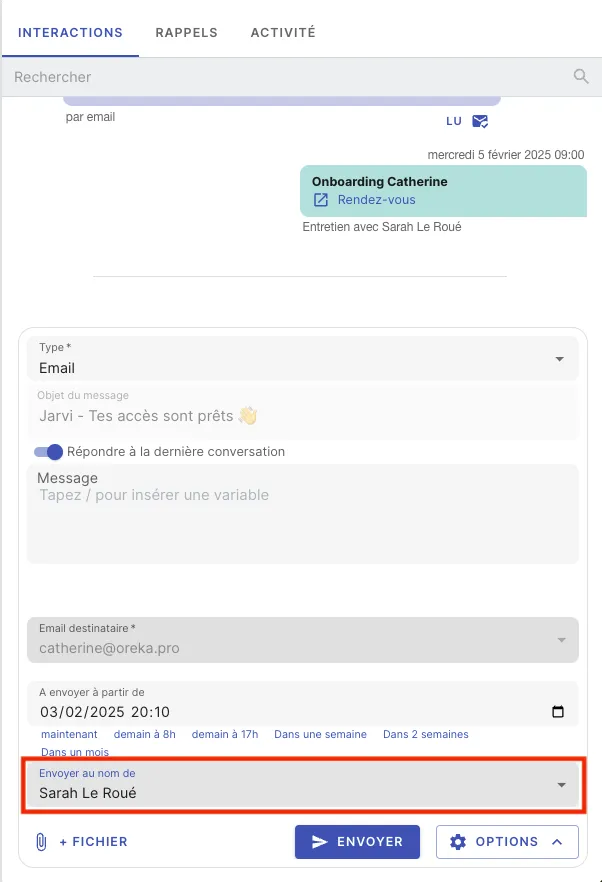
- You will have the option to select on behalf of which team member you wish to send the message.
For example, in the example below, you can send a LinkedIn message or an Email on behalf of “Sarah Le Roué”.
3. Bulk sending
This option is also available for bulk sends. You can send batch messages on behalf of different people on your team, making it easier to manage messages at scale.
With this feature, you can easily manage collaborative message sending, ensuring that communications are made on behalf of the right team member.