1. Access the import option
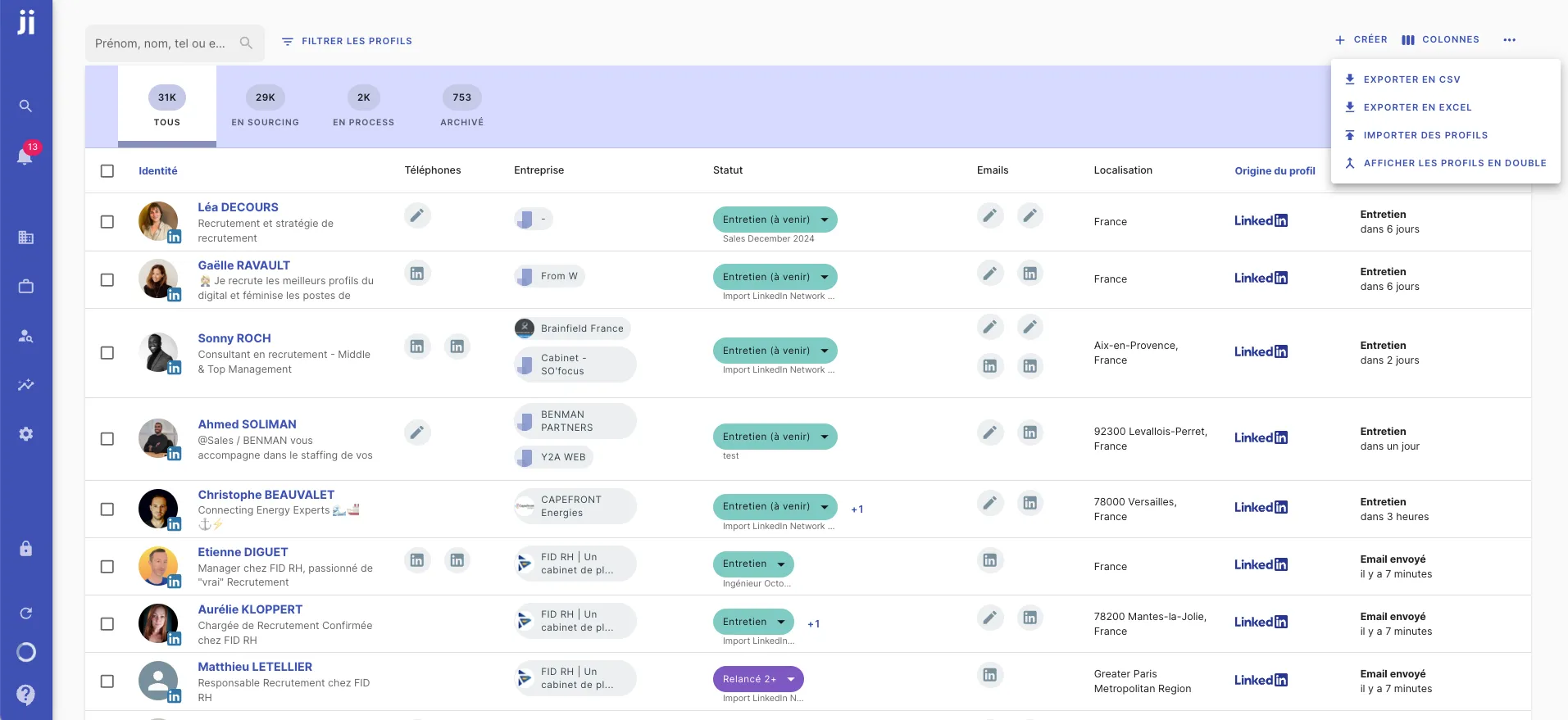
- Go to the section where you want to import your list of profiles, projects or companies.
- Click on the three dots located on the right side of the screen.
- Select “Import profiles”.
2. Select your file to import
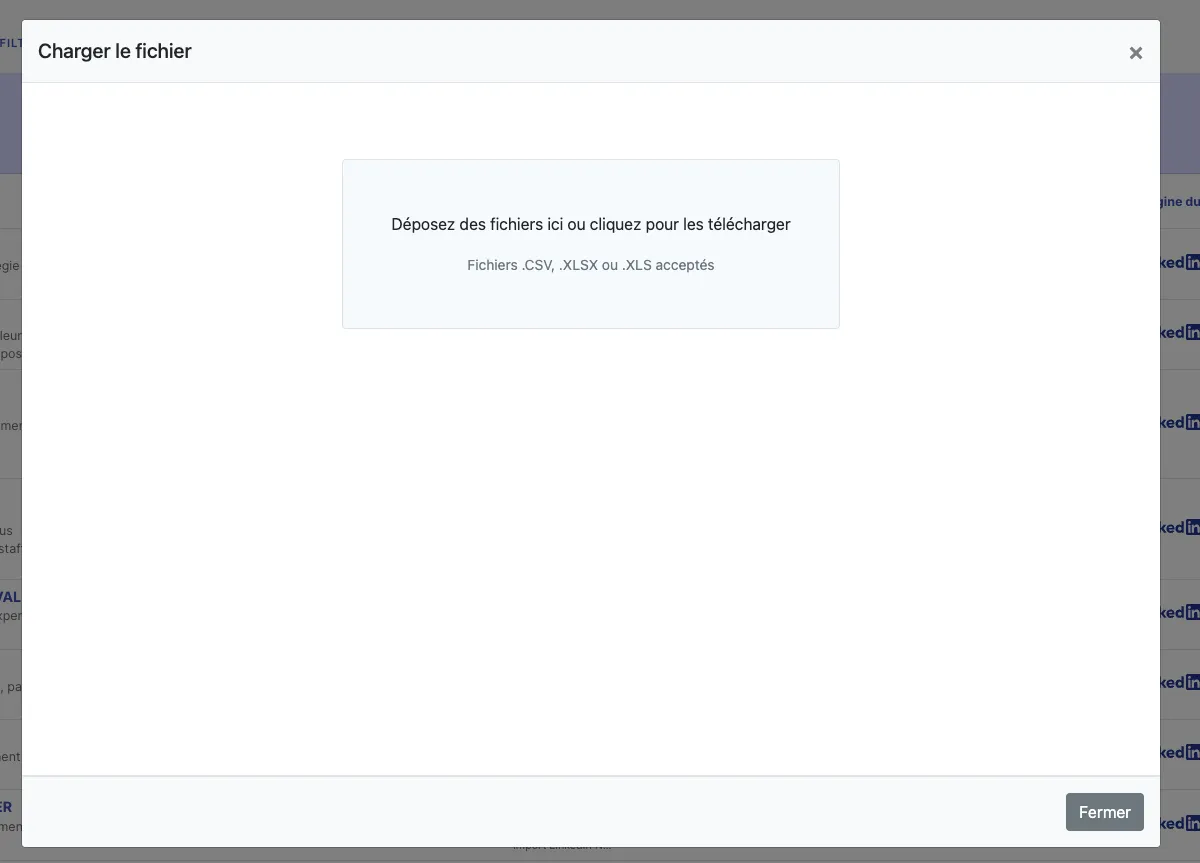
- Choose the Excel or CSV file you want to import.
3. Match the file columns with Jarvi fields
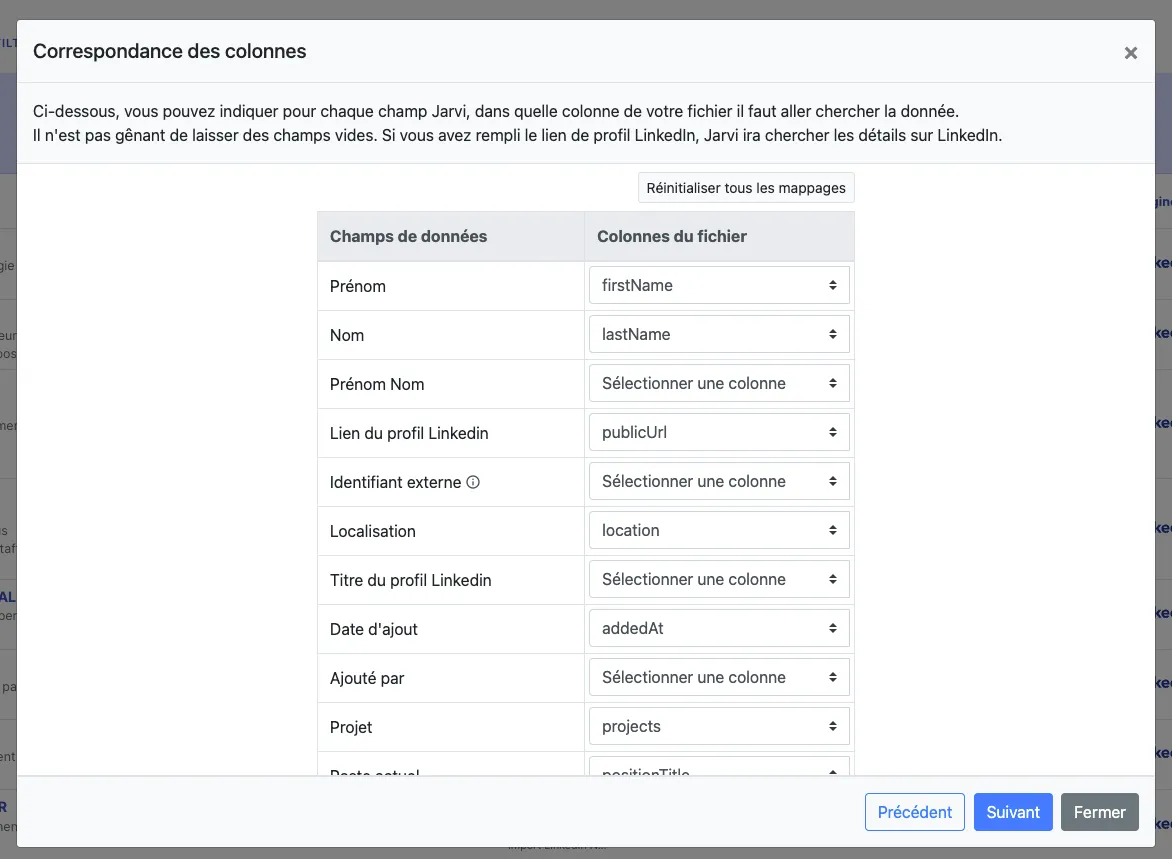
- Once the file is uploaded, you’ll see two columns: on the left, the fields available in Jarvi, and on the right, the columns from your file.
- Make sure the columns from your file are correctly mapped to the corresponding fields in Jarvi.
- If necessary, you can create custom fields in Jarvi to adapt the mapping to your needs.
4. Finalize the import
- Once the matches are validated, click on “Next” then on “Submit” to finalize the import.
- Jarvi will automatically create the profiles, companies or projects from your file data and add them directly to the platform.
This feature saves you time by quickly importing your data from Excel or CSV files, without having to enter them manually in Jarvi.