Creating message templates in Jarvi
Jarvi helps you save time and improve your communications by creating customized message templates for your applications. Follow these steps to create and use your message templates!
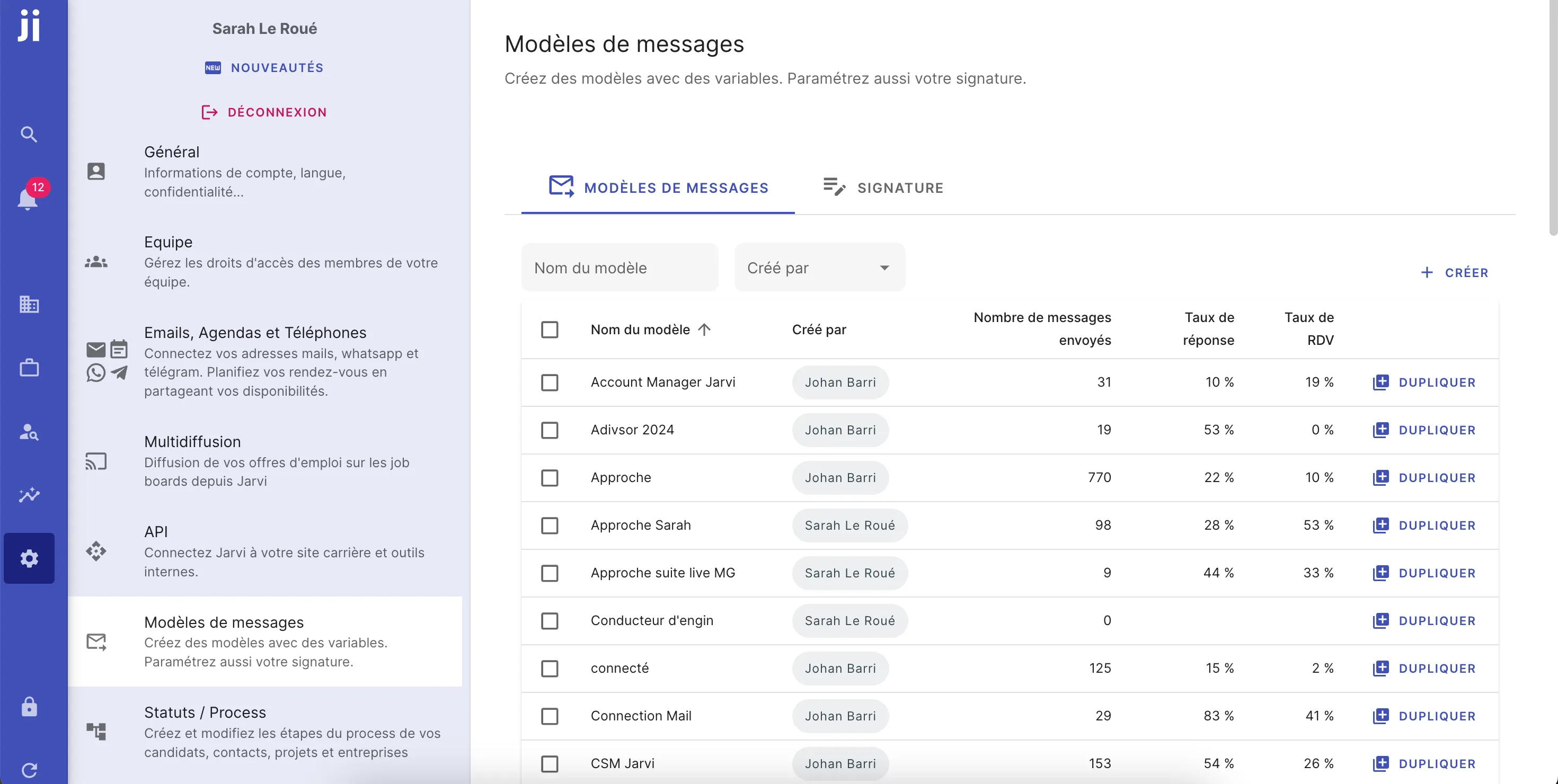
Accessing the message templates section
- Go to the Jarvi menu (blue column on the left side of the screen).
- Click on “Preferences” then on “Message templates”.
- Click on ”+ Create” on the far right of the screen to add a new template.
Creating a message template
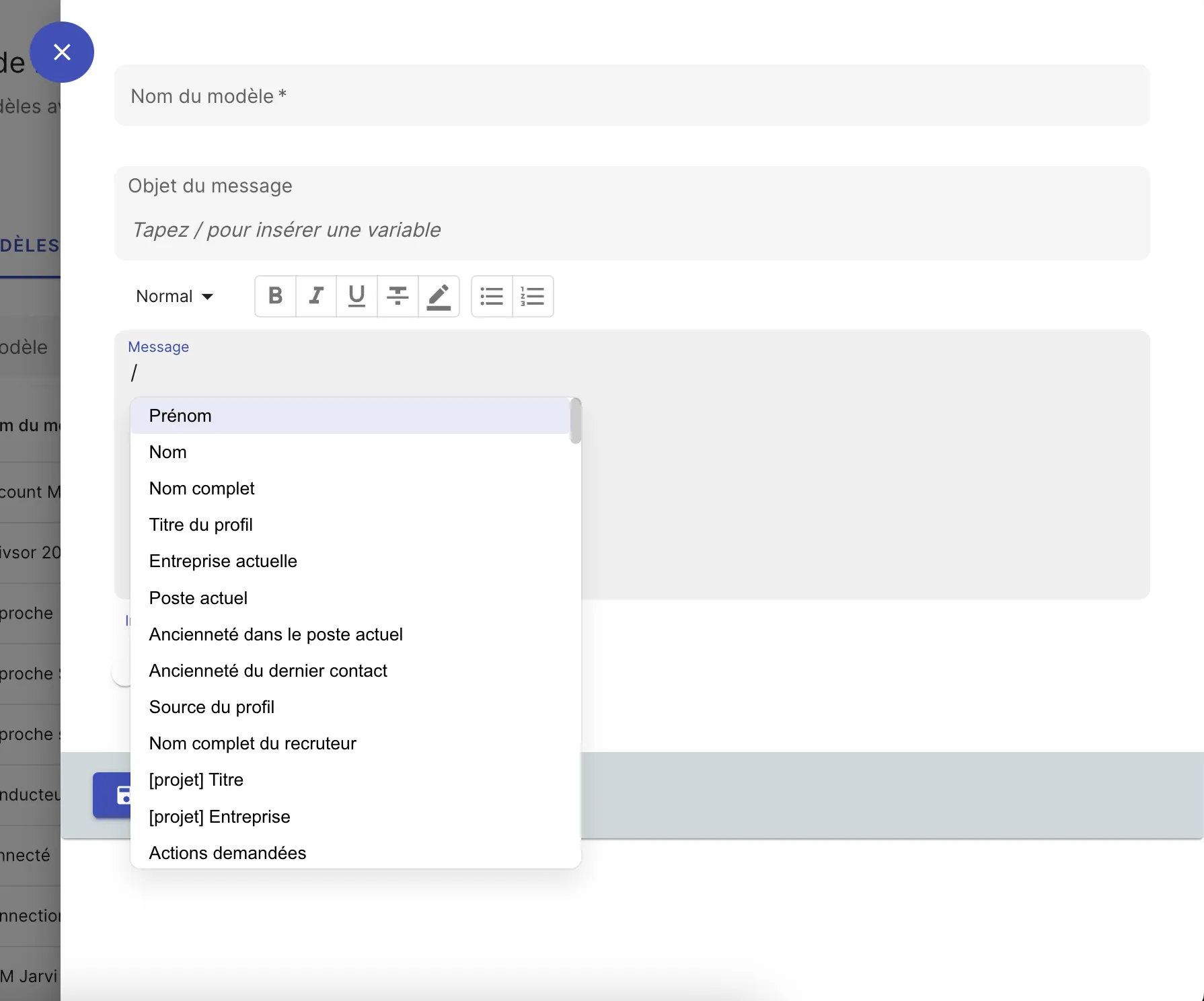
- Fill in the different fields:
- Template name: Choose a name for your template. This name will help you find it easily later.
- Subject: Enter the subject of the message. This field is mandatory, even if the template will only be used for InMails or connection requests.
- Message: Write the content of your message (InMail, email, or connection request). You can personalize the message by using the / key to insert variables such as the recipient’s first name, last name, current position, or current company.
Example: - Subject: Hello [First Name] - Message: Hello [First Name], I see that you work at [Current Company] as a [Current Position] for [Seniority in Current Position].
Note: The variables will be automatically replaced with your candidates’ information when you send the message.
Save and use your template
- Click on “Save” once you have customized your template. It will now be available in your message templates.
Track the performance of your message templates
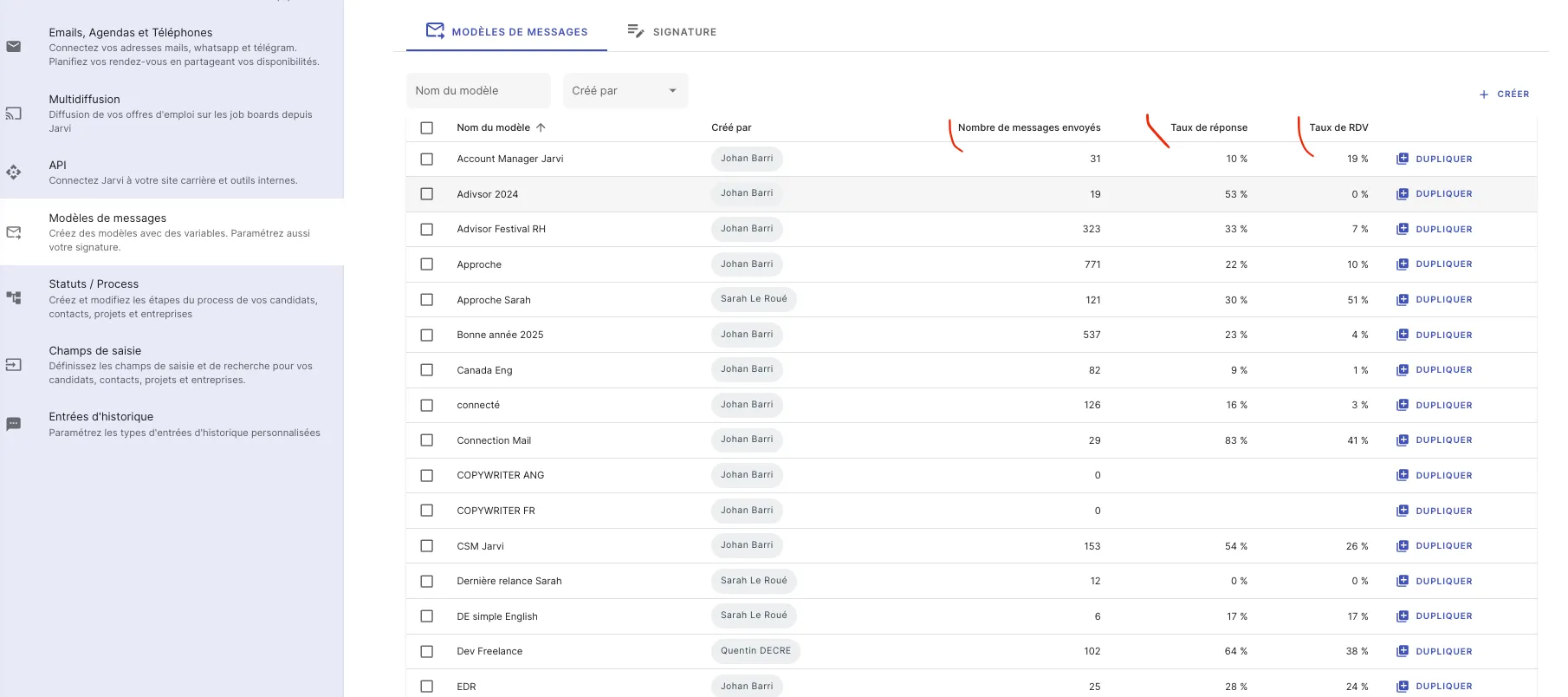
- You can view several pieces of information on the message templates page:
- Number of sends: How many times this template has been sent.
- Response rate: Percentage of responses received with this template.
- Appointment rate: Percentage of appointments booked thanks to this template.
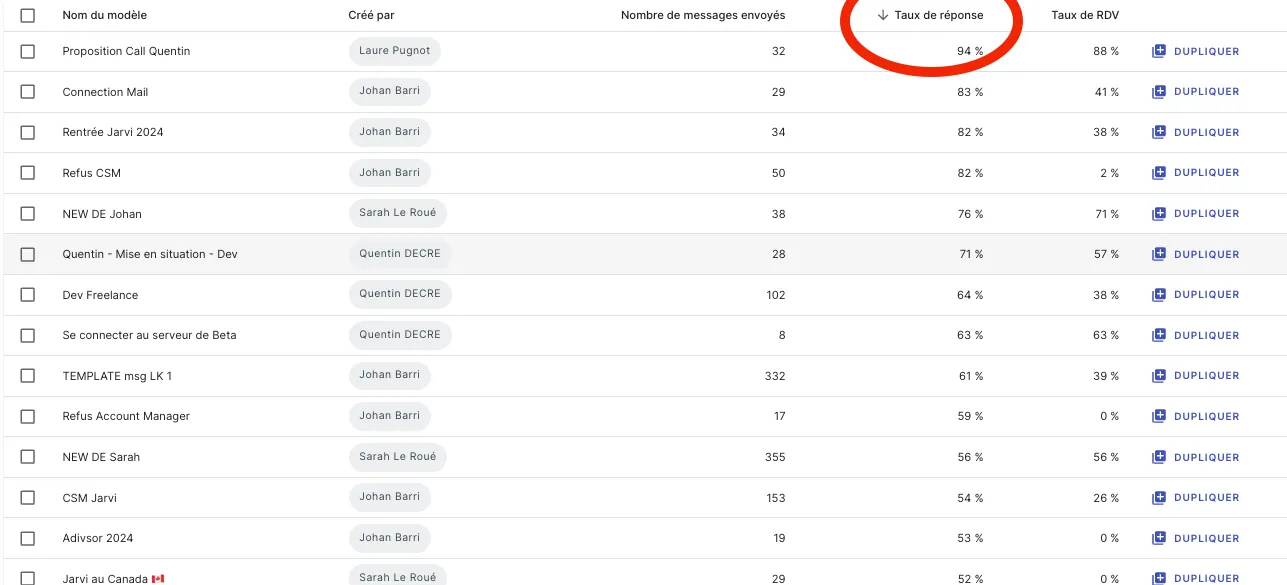
- Optimize your template performance:
- You can sort templates by clicking on the Response rate or Appointment rate column headers to see which templates have the best results.
Creating message templates saves you time and personalizes your conversations. Start creating your templates now and check the statistics to optimize your messages!
That’s it! You now have your message templates ready to use.